


On this page: Background and Purpose | Instructions | Automated Accessibility Check (HHS) | Guidelines and Standards

Creating a Tagged Document with a Logical Reading Order (MS PowerPoint)
Background and Purpose
All PDF document accessibility standards and guidelines include language regarding the logical reading order of PDF documents. This language includes various components/ wording such as:
- Documents shall be organized so that they are readable without requiring an associated style sheet. In other words, the reading order of the document can be determined based on the structure of the document by itself.
- The presentation of content by assistive technology shall follow the logical order as it is presented visually.
- If the sequence in which content is presented affects its meaning of that content then a correct reading sequence must be able to be programmatically determined.
The Purpose of this checkpoint is to assure that the generated PDF document will be read by assistive technology in the same logical sequence by which it would be read in print format.
Instructions
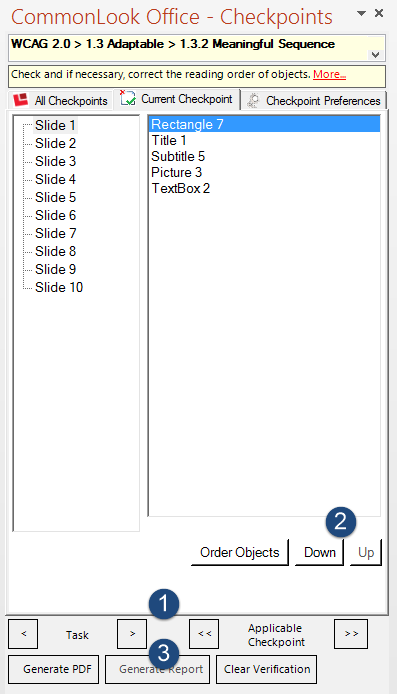
When CommonLook Office opens on this checkpoint, on the left side of the wizard a panel will list all of the slides used in the presentation. When a slide is selected, the panel on the right will list every element on that particular slide. The reading order of the elements on the slide will be set to follow the order in which the slide elements are listed.
- Use the arrow to the right of “Task” (“Next Task”) to scroll down through the elements, making sure that their placement in the reading order is correct.
- If needed, use the “Down” or “Up” buttons to change the reading order of the elements on the slide. The “Order Objects” button will automatically order the elements on the slide to be read from top-to-bottom and left-to-right.
- When finished with the first slide, use “Next Task” to check the reading order of the next (and subsequent) slides.
Headers and Footers
CommonLook Office will automatically artifact content in the header and/or footer sections of PowerPoint slides (such as slide numbers) and this content will not be read by assistive technology. If header or footer content should be read, move it to a logical place on the slide so that it is included in the tagged content.
References and Footnotes
PowerPoint does not include the functionality for creating references and footnotes that other Microsoft products (such as MS Word) do. When creating references and footnotes manually, be sure to check the reading order of these elements as well, following the instructions listed above. In addition, check the PDF to make sure that references and footnotes have been properly tagged.
Automated Accessibility Check (HHS)
The U.S. Department of Health and Human Services (HHS) asks, in their PDF file 508 checklist, “If there is an automated accessibility checker in the program used to create the PDF, has that been run and does it pass?” As a plug-in to MS Word, CommonLook Office can be considered the “built in accessibility checker.” By running through the other checkpoints in CommonLook Office, this checkpoint is satisfied as well.
Guidelines and Standards
This checkpoint is relevant to the following regulations, guidelines and standards:
| Document | Published | Scope | Conformance Criteria |
|---|---|---|---|
| Section 508 – 2001 Regulations (USA) | 2001 | “Web-Based Information & Applications” | (d) |
| W3C WCAG 2.0 | 2008 | Web Content | SC 1.3.2 |
| Health and Human Services – HHS (USA) | 2013 | PDF File 508 Checklist | ID 2.5 ID 3.1 ID 3.2 |
| ISO 14289 (PDF/UA) | 2012 | PDF Technology | Section 7.1 Section 7.8 Section 7.9 |
