On this page: System Requirements | Downloading and Installing | Activating by Email | Using CommonLook Office | Help with Installation Issues | Training | Legal Notices
Please note: You will find the download link for the software in Step Number 2, below.
System Requirements
IMPORTANT: Before installing CommonLook Office, please ensure that the workstation meets the following minimum requirements:
- Windows 10 or later,
- MS Word 2010 or later,
- MS PowerPoint 2010 or later (not required if working exclusively in Word).
Downloading and Installing
- Uninstall the previous version.
Note: If you are manually installing the software, you must ensure that the previous version is uninstalled. If you are updating using the auto-update functionality of the newer versions of the software, you can skip this step. - Download CommonLook Office
Use THIS LINK to download CL Office - Open and run the CommonLook Office executable (.exe) file.
- When the splash screen dialog box opens, select “Install.”

- Allow Changes? Select “Yes”

- Read the licensing agreement

- Agree to the terms and conditions by checking the checkbox.

- Select Next

- Select the “Register Now” button.

- Enter your Product Key (the 10-digit number included in your Welcome email).
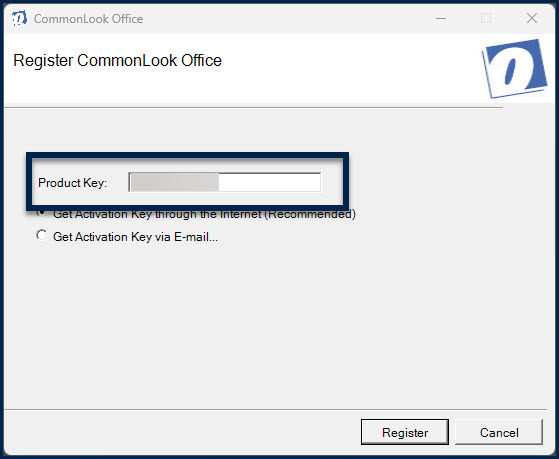
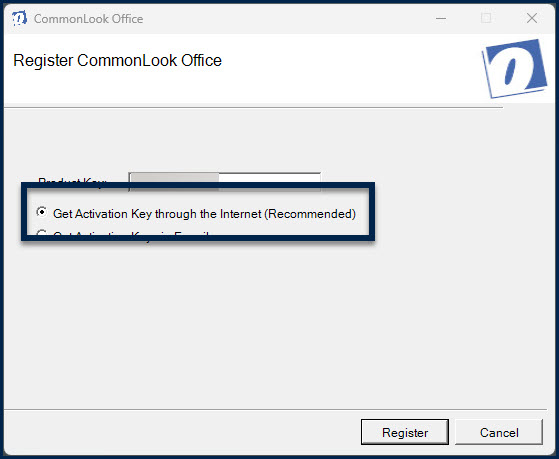
- Choose Internet (Recommended) or Email.
Already had CommonLook? Select Internet and go to the next step.
OR
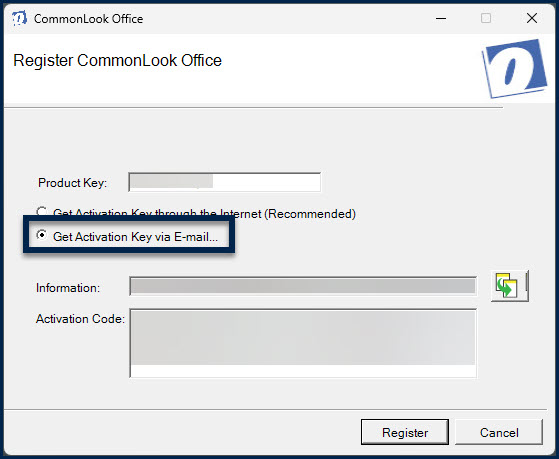
Note: If registering by email for the first time, refer to the Email Activation instructions below. - Select Register.
Note: If you attempt to register through the Internet and get an error message stating, “Failed to connect to the NetCentric server,” try the activation again following the steps for Email Activation.
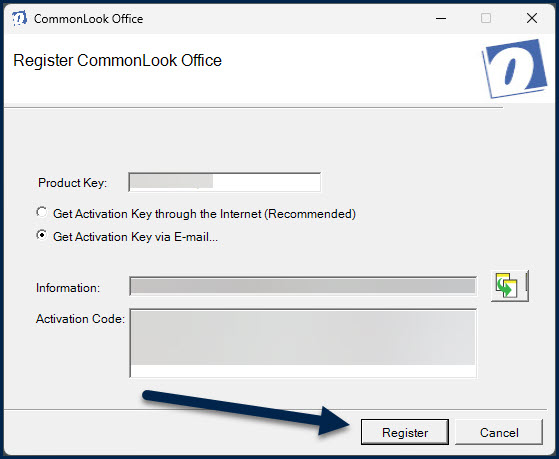
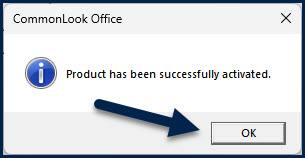
- After activating the “Register” button, a dialog box will tell you the product has been successfully activated. Select the “OK” button.
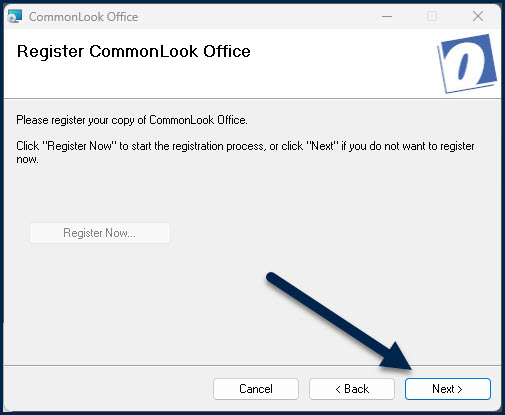
- On the Register screen, select “Next”
- On the Setup Wizard screen, select Next.

- On the Select Installation Folder dialog, keep the default which is stet to “Everyone.”

- Select Next

- On the “Confirm Installation” dialog, select Next.

- Installation complete. Select “Close”

Getting Your Activation Code by Email (after Step 11, above)
- After inputting the Product Key (Step 10, above), and choosing “Email Activation (Step 11), use the copy button, after the Information Number to copy that number to your machine’s clipboard.
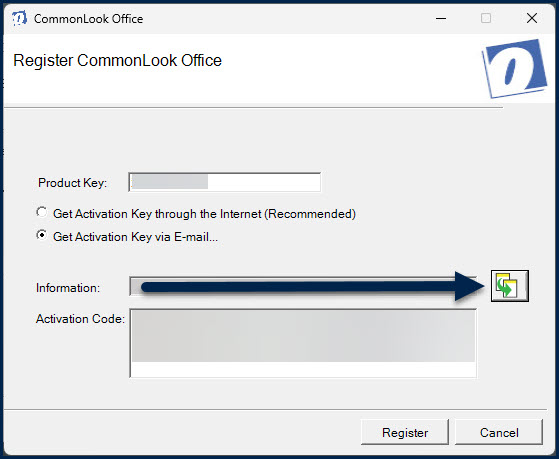
- Paste the Information number into an email to support@allyant.com.
- Allyant will send back to you an Activation Code. Enter the Activation Code provided by Allyant and then press the Tab key on your keyboard to navigate to the “Register” button.
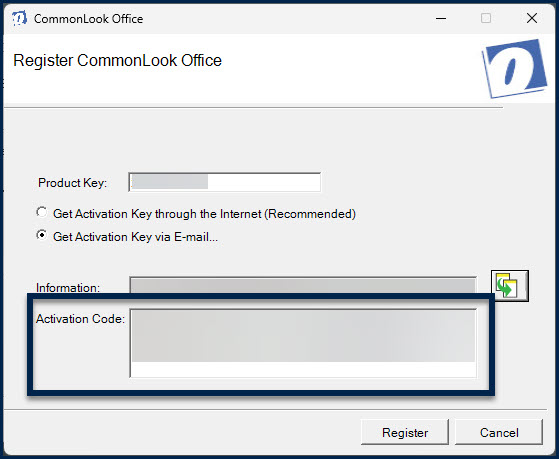
- Return to Step 12, above.
Using CommonLook Office
After the software has been installed and registered, you’re ready to use CommonLook Office to create your compliant PDFs from your MS Word documents or PowerPoint presentations.
To get started, visit our Knowledge Base, where you’ll find Quick Start Guides for CommonLook Office for both Word and PowerPoint.
Need Help with Installation or Activation?
If you encounter any issues during installation/registration, please email support@allyant.com. Try to include as many details as possible (screenshots are also very helpful) and our support team will assist you promptly.
Training
Training is available for using CommonLook Office. Visit our Training page for more information. In addition, check out our Knowledge Base and speak with your Account Executive about gaining access to our online, self-paced training modules.
Legal Notices
Trademarks
All trademarks referenced in this document are the property of their respective owners.
Warnings and Disclaimers
Every effort has been made to make this document as complete and as accurate as possible, but no warranty or fitness is implied. The information provided is on an “as is” basis. NetCentric Technologies Inc. (doing business as CommonLook) shall have neither liability nor responsibility to any person or entity with respect to any loss or damages arising from the information contained in this document.
All rights reserved. No part of this publication may be reproduced, transcribed, stored in a retrieval system or transmitted in any means, electronic, mechanical, photocopying, recording, or otherwise, without prior written permission from NetCentric Technologies Inc. (d.b.a. CommonLook).